How to fix 'Connection refused' errors on Linux
A practical guide to diagnosing 'Connection refused' on Linux — covering SSH, web servers, databases, and Docker — with exact commands to find and fix the cause.
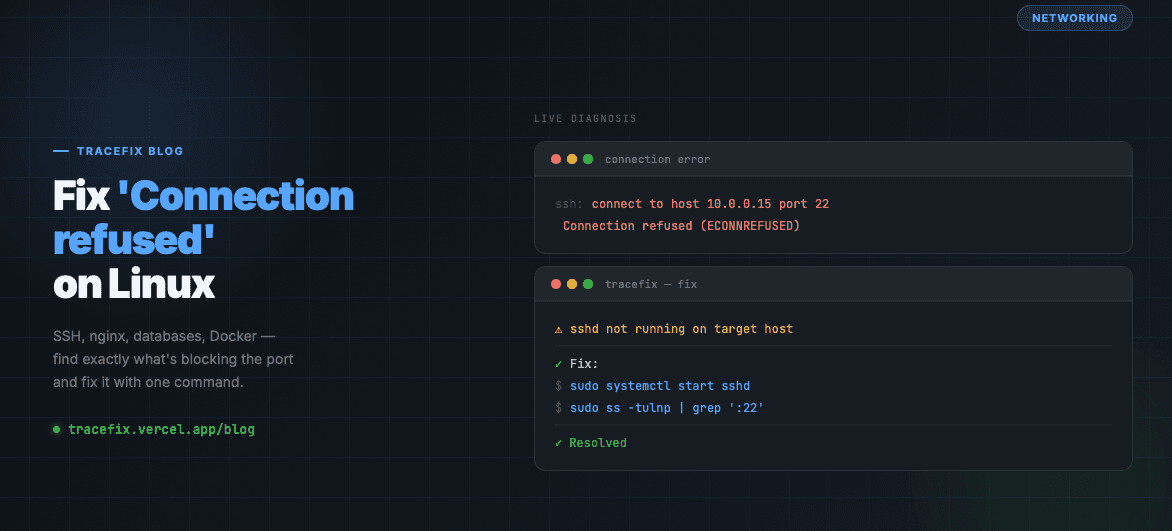
'Connection refused' means the server actively rejected your connection attempt. Unlike a timeout (where the server is unreachable), refused means the server is up but nothing is listening on the port you're hitting. Here's how to find exactly what's wrong.
Understand the difference first
This matters because the fix depends on the cause. 'Connection refused' (ECONNREFUSED) means the port is not open. 'Connection timed out' means the host is unreachable or a firewall is silently dropping packets. This guide covers ECONNREFUSED only.
Step 1 — Check if anything is listening on the port
The first thing to do is confirm whether a service is actually bound to the port you're connecting to:
# Check what's listening on a specific port (e.g. 8080):
sudo ss -tulnp | grep ':8080'

# Or check all listening ports:
sudo ss -tulnp

# Alternative with netstat:
sudo netstat -tulnp | grep ':8080'
Fix 1 — Service is not running
If nothing shows up in the output above, the service simply isn't running. Start it:
# For systemd services:
sudo systemctl start nginx
sudo systemctl status nginx

# For Docker containers:
docker ps -a
docker start <container_name>

# Check why it failed to start:
sudo journalctl -u nginx --no-pager -n 50
Fix 2 — Service is listening on wrong address
A service may be running but bound to 127.0.0.1 (localhost only) instead of 0.0.0.0 (all interfaces). This is common with databases and development servers:
# Check what address the service is bound to:
sudo ss -tulnp | grep ':5432'
# If it shows 127.0.0.1:5432 — it's local only

# For PostgreSQL — edit postgresql.conf:
sudo nano /etc/postgresql/*/main/postgresql.conf
# Change: listen_addresses = 'localhost'
# To:     listen_addresses = '*'
sudo systemctl restart postgresql

# For Redis — edit redis.conf:
# Change: bind 127.0.0.1
# To:     bind 0.0.0.0
Fix 3 — Firewall blocking the port
The service may be running and listening on the right address, but a firewall rule is blocking external connections:
# Check UFW status:
sudo ufw status

# Allow a port through UFW:
sudo ufw allow 8080/tcp

# Check iptables rules:
sudo iptables -L -n | grep 8080

# Allow with iptables:
sudo iptables -A INPUT -p tcp --dport 8080 -j ACCEPT
Fix 4 — SSH connection refused
SSH refused specifically means sshd isn't running, or it's listening on a different port than you expect:
# Check if sshd is running:
sudo systemctl status sshd

# Start it if not running:
sudo systemctl start sshd

# Check which port SSH is actually on:
grep Port /etc/ssh/sshd_config

# Connect on the correct port:
ssh -p 2222 user@host
Fix 5 — Docker port not published
If you're connecting to a Docker container and getting connection refused, the port may not be published to the host:
# Check port mappings:
docker ps
# Look for the PORTS column — if empty, ports aren't published

# Run with port published:
docker run -p 8080:8080 myimage

# Or in docker-compose.yml:
# ports:
#   - '8080:8080'
Quick diagnostic checklist
If you're still stuck, run through these in order:
# 1. Is the service running?
sudo systemctl status <service>

# 2. Is it listening on the right port and address?
sudo ss -tulnp

# 3. Is the firewall blocking it?
sudo ufw status

# 4. Can you connect locally?
curl http://127.0.0.1:8080

# 5. Check the service logs:
sudo journalctl -u <service> -n 50
Still stuck?
Paste your full error log or ss output into TraceFix and get the exact root cause and fix command in seconds.
Still seeing this error?
Paste your full log into TraceFix and get the exact root cause and fix in seconds — no prompts, no guessing.
Analyze my logs