Boot failed: root filesystem unavailable — how to fix it
What dracut and rootfs boot errors mean, how to read boot logs, and how to recover a Linux system that won't boot.
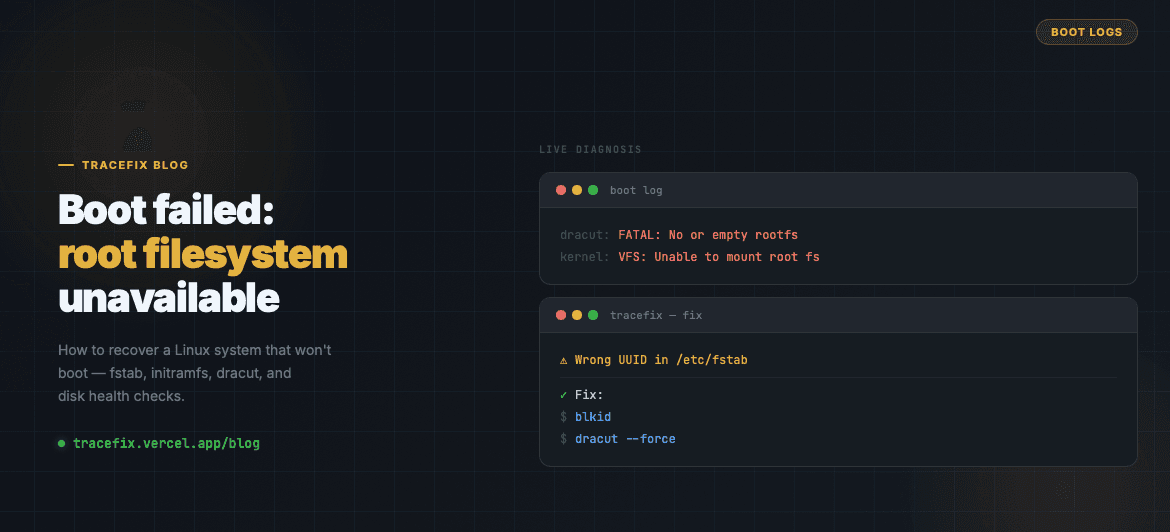
A 'root filesystem unavailable' error during Linux boot is one of the scariest errors you can see — but it's almost always recoverable. Here's how to diagnose and fix it.
What this error means
During boot, the kernel mounts the root filesystem before anything else can run. If it can't find or mount it — due to a bad fstab entry, a missing initramfs driver, or a corrupted disk — it drops into an emergency shell or halts.
Step 1 — Read the boot logs
If the system boots far enough, check the journal for boot-time errors:
sudo journalctl -b -1 -p err
sudo journalctl -b --no-pager | grep -i 'root\|mount\|dracut'
Step 2 — Check /etc/fstab
A wrong UUID or device path in /etc/fstab is the most common cause. Boot from a live USB and mount the disk to inspect:
# From live USB:
mount /dev/sda1 /mnt
cat /mnt/etc/fstab

# Verify UUIDs match:
blkid
Step 3 — Regenerate initramfs
If a kernel update broke the initramfs, regenerate it from a live environment or rescue mode:
# Chroot into the system first:
mount /dev/sda1 /mnt
chroot /mnt

# Then regenerate:
dracut --force
# or on Debian/Ubuntu:
update-initramfs -u
Step 4 — Check disk health
A failing disk can cause intermittent mount failures. Check SMART data:
sudo smartctl -a /dev/sda
Still stuck?
Paste your boot log or dracut output into TraceFix for an instant root cause and recovery steps.
Still seeing this error?
Paste your full log into TraceFix and get the exact root cause and fix in seconds — no prompts, no guessing.
Analyze my logs