How to fix 'No space left on device' on Linux (including when df -h shows free space)
The complete guide to diagnosing and fixing the Linux 'No space left on device' error — covering disk full, inode exhaustion, Docker bloat, and deleted files held open by processes.
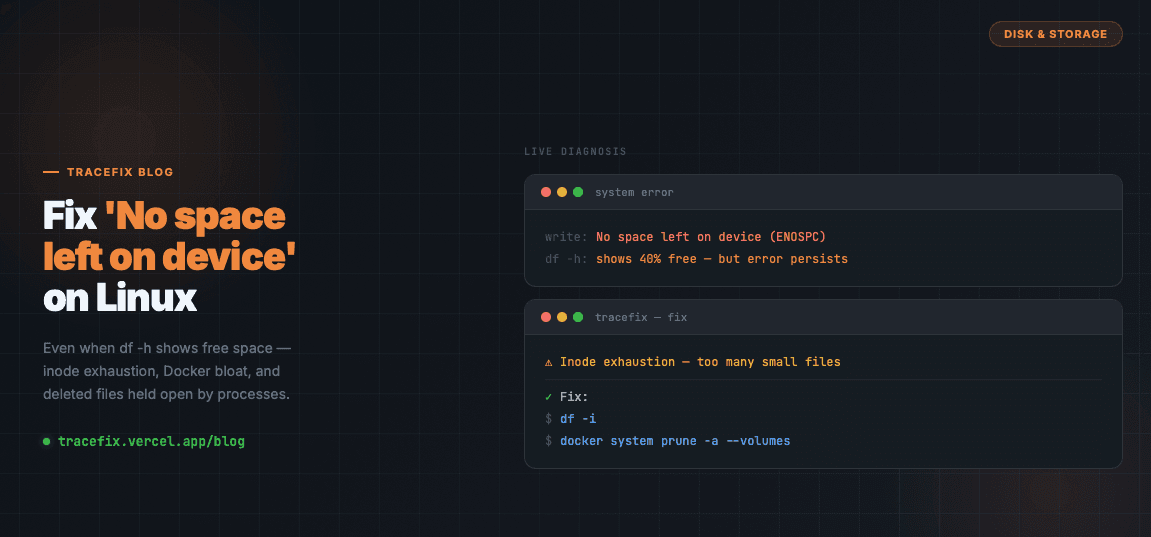
'No space left on device' is one of the most common and frustrating Linux errors — and it has four completely different root causes, each requiring a different fix. The tricky part: df -h can show free space while the error is still happening. Here's how to diagnose which case you're in and fix it fast.
Step 1 — Check if disk space is actually full
Start with the obvious check. Look at disk usage across all mounted filesystems:
df -h
# Focus on the filesystem where the error is occurring
# Look for any partition at 100% or close to it
Fix 1 — Disk is genuinely full
If df -h shows a partition at 100%, find what's eating the space. Large log files and old Docker images are the most common culprits:
# Find the biggest directories:
du -sh /* 2>/dev/null | sort -rh | head -20

# Find large files specifically:
find / -type f -size +100M 2>/dev/null | sort -rh | head -20

# Clear old journal logs (often gigabytes):
sudo journalctl --vacuum-size=200M

# Clear apt cache:
sudo apt clean
Fix 2 — Inode exhaustion (df -h shows free space but error persists)
This is the most confusing case. Linux filesystems have a fixed number of inodes — one per file. If you run out of inodes, you can't create new files even with gigabytes of free disk space. Millions of small files (session files, cache entries, mail queues) are the usual cause:
# Check inode usage — look for 100% in the IUse% column:
df -i

# Find which directory has the most files:
for i in /*; do echo $i; find $i -xdev | wc -l; done 2>/dev/null | paste - -

# More targeted search:
find / -xdev -printf '%h\n' 2>/dev/null | sort | uniq -c | sort -rn | head -20
Fix 3 — Docker eating all your space
Docker accumulates stopped containers, dangling images, unused volumes, and build cache silently. This is the leading cause of 'no space left on device' on developer machines and CI servers:
# See how much Docker is using:
docker system df

# Safe cleanup — removes unused containers, networks, dangling images:
docker system prune

# Aggressive cleanup — also removes unused volumes:
docker system prune -a --volumes

# If build cache is the problem:
docker builder prune
Fix 4 — Deleted files still held open by a process
When a process has a file open and you delete it, Linux keeps the data on disk until the process closes it. The space doesn't free up, but df shows it as used. This is another case where df -h lies to you:
# Find deleted files still held open by running processes:
lsof | grep deleted

# The fix is to restart the process holding the file:
# Check the process name from lsof output, then:
sudo systemctl restart <service-name>
# Or kill the PID:
sudo kill <PID>
Fix 5 — /tmp or /var/log filling up
These directories fill up silently on long-running servers. Clear them directly:
# Clear /tmp:
sudo rm -rf /tmp/*

# Find large log files:
ls -lhS /var/log/ | head -20

# Truncate a specific log without removing it:
sudo truncate -s 0 /var/log/syslog

# Rotate all logs now:
sudo logrotate -f /etc/logrotate.conf
Prevention — set up log rotation and disk alerts
The best fix is not needing one. Set up automatic log rotation and a disk usage alert so you catch this before it hits production:
# Check logrotate is configured:
cat /etc/logrotate.conf

# Simple disk usage alert (add to crontab):
# Alerts if any disk partition exceeds 85% usage
df -h | awk 'NR>1 && $5+0 > 85 {print "ALERT: "$6" at "$5}'

# Add to crontab -e:
# 0 * * * * df -h | awk 'NR>1 && $5+0 > 85 {print "Disk alert: "$6" at "$5}' | mail -s "Disk Warning" you@example.com
Still stuck?
Paste your full error log or df output into TraceFix and get the exact root cause and fix command in seconds.
Still seeing this error?
Paste your full log into TraceFix and get the exact root cause and fix in seconds — no prompts, no guessing.
Analyze my logs