How to fix 'systemd service failed to start' on Linux
A step-by-step guide to diagnosing and fixing systemd service startup failures — covering the most common causes like missing files, permission errors, and bad config.
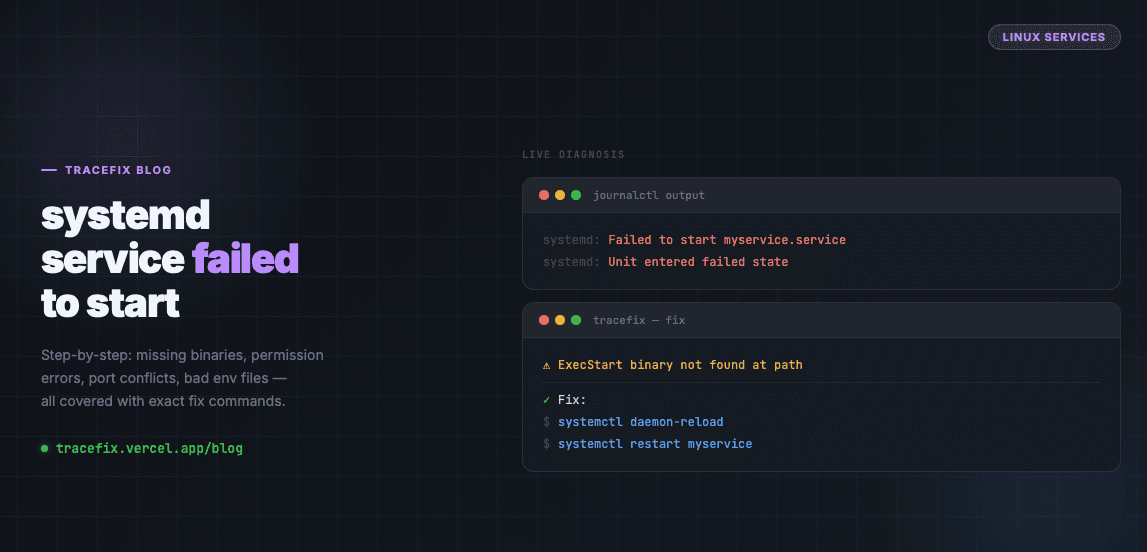
When a systemd service fails to start, the error message is usually vague: 'Failed to start MyService' or 'Unit entered failed state'. Here's how to find the real cause and fix it fast.
Step 1 — Check the service status
The first command to run is always systemctl status. It shows the last few log lines and the exit code, which usually points directly at the problem:
sudo systemctl status myservice.service
Step 2 — Read the full logs with journalctl
If the status output isn't enough, pull the full service logs from the journal. This is where the real error is almost always hiding:
sudo journalctl -u myservice.service --no-pager -n 50
# Or follow live:
sudo journalctl -u myservice.service -f
Fix 1 — ExecStart binary not found or wrong path
The most common cause is a wrong path in the ExecStart line of the unit file. Verify the binary exists and is executable:
# Find where the binary actually is:
which myapp
ls -la /usr/local/bin/myapp

# Check the unit file:
sudo cat /etc/systemd/system/myservice.service | grep ExecStart
Fix 2 — Permission denied
If the log shows 'Permission denied', the service user doesn't have access to a file or directory it needs:
# Check which user the service runs as:
grep -i 'user\|group' /etc/systemd/system/myservice.service

# Fix ownership of the app directory:
sudo chown -R myuser:myuser /opt/myapp
Fix 3 — Port already in use
If your service binds to a port and another process owns it, the service will fail immediately:
# Find what's using the port:
sudo ss -tulnp | grep ':8080'

# Kill it or stop the conflicting service:
sudo systemctl stop conflicting-service
Fix 4 — Environment file or config missing
If the unit file references an EnvironmentFile that doesn't exist, systemd will refuse to start the service:
# Check for EnvironmentFile in the unit:
grep EnvironmentFile /etc/systemd/system/myservice.service

# Create it if missing:
sudo touch /etc/myservice/env
sudo systemctl daemon-reload
Reload and restart after any change
After editing a unit file or fixing the underlying issue, always reload systemd before restarting:
sudo systemctl daemon-reload
sudo systemctl restart myservice.service
sudo systemctl status myservice.service
Enable the service to start on boot
If the service starts successfully but doesn't survive a reboot, it's not enabled:
sudo systemctl enable myservice.service
Still stuck?
Paste your journalctl output into TraceFix and get the exact root cause and fix in seconds.
Still seeing this error?
Paste your full log into TraceFix and get the exact root cause and fix in seconds — no prompts, no guessing.
Analyze my logs